
Shared rules
Shared rules let an admin create a rule once and roll it out to the whole team, so everyone drafts the same reliable reply for the situations you all handle. Shared rules are part of ENTERPRISE.
Some replies should sound the same no matter who on your team handles the email — a standard "we've received your request", a booking confirmation, a first response to a new enquiry. Instead of asking every teammate to build that rule themselves and hope the wording lines up, an admin writes it once and shares it. Everyone then drafts from the same rule, so the answer your customers get is consistent.
A shared rule works exactly like a normal rule — it describes a situation you handle and drafts a reply when an email matches. The difference is who owns it. A personal rule belongs to one person. A shared rule belongs to the account and appears for everyone on the team.
Because the admin owns the shared rule, the wording stays put. Teammates draft from it, but they don't each have their own slightly different version drifting apart over time. That is the whole point: one approved way to answer, used by the whole team.
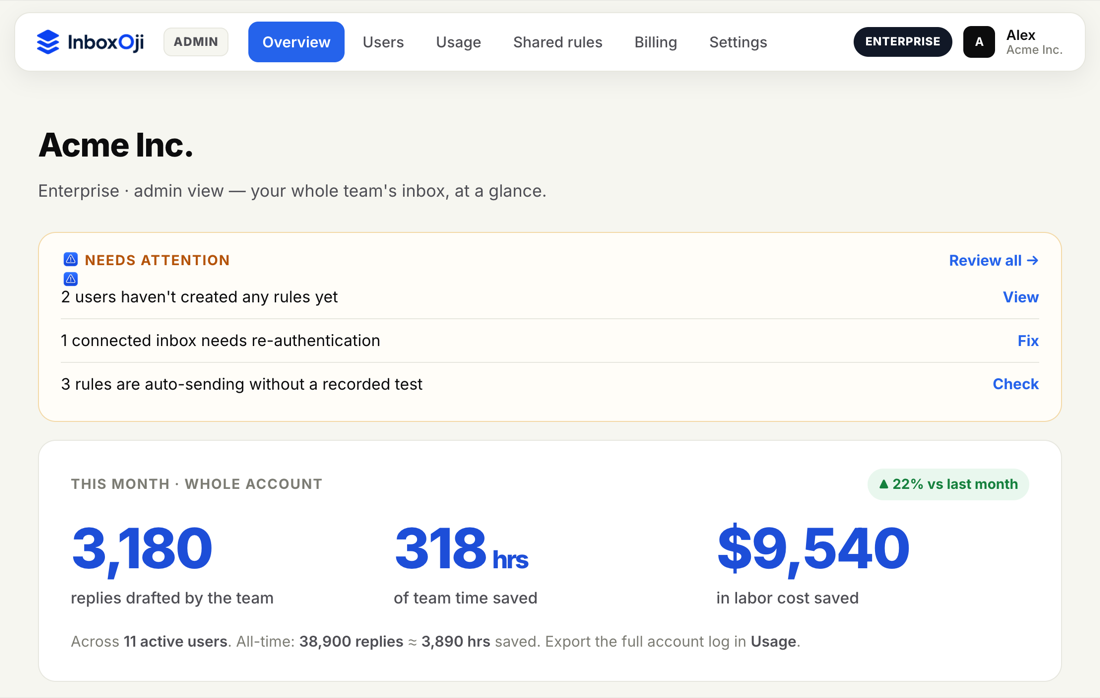
Shared rules are created and managed by an admin from the admin console. (For who counts as an admin, see Roles and permissions.)
- Open the admin console
Go to Admin. This is where company-wide rules live, separate from your own personal rules.
- Build the rule
Create the rule the same way you would any other — a clear situation and the reply you want for it. If you need a refresher, see Write your first rule.
- Apply it to the team
Roll the rule out to the team. From that point it appears for your teammates alongside their own rules, ready to draft.
- Publish it
Like any rule, a shared rule only starts drafting on real mail once it is published. See Draft vs published for how that works.
Start new teammates ready
In Company profile & defaults there is an "auto-apply shared rules" setting. Turn it on and every new teammate you invite gets the shared rules automatically, so they can start drafting from day one without setting anything up. Leave it off if you would rather hand out shared rules selectively.
For a teammate, a shared rule shows up on their Rules page next to the rules they made themselves. It drafts the same way any rule does: a matching email comes in, InboxOji picks the matching rule, and a reply waits in the inbox to review and send. Nothing about reviewing and sending changes — see Review and send drafts.
Teammates generally can't edit a shared rule — the admin owns it. That is deliberate. It keeps the wording identical across everyone, which is exactly why you shared it in the first place. If a shared rule needs a change, an admin updates it once and the new version applies for the whole team.
Use shared rules for your company-standard replies — the ones that should read the same from everyone. Let individuals keep their own personal rules for the situations specific to them and their own style. The two live side by side, so you get consistency where it matters and flexibility everywhere else.
A shared rule can draft in your company's writing voice rather than each person's individual tone, so the replies feel like they come from the business. You set that voice once in the admin console — see Company voice and model for how the company-wide voice and drafting model work.