
Roles and permissions
On Enterprise, every teammate has a role that decides what they can do. There are three: Owner, Admin, and User. Roles keep billing and company-wide settings in trusted hands, while everyone still manages their own inbox and drafts.
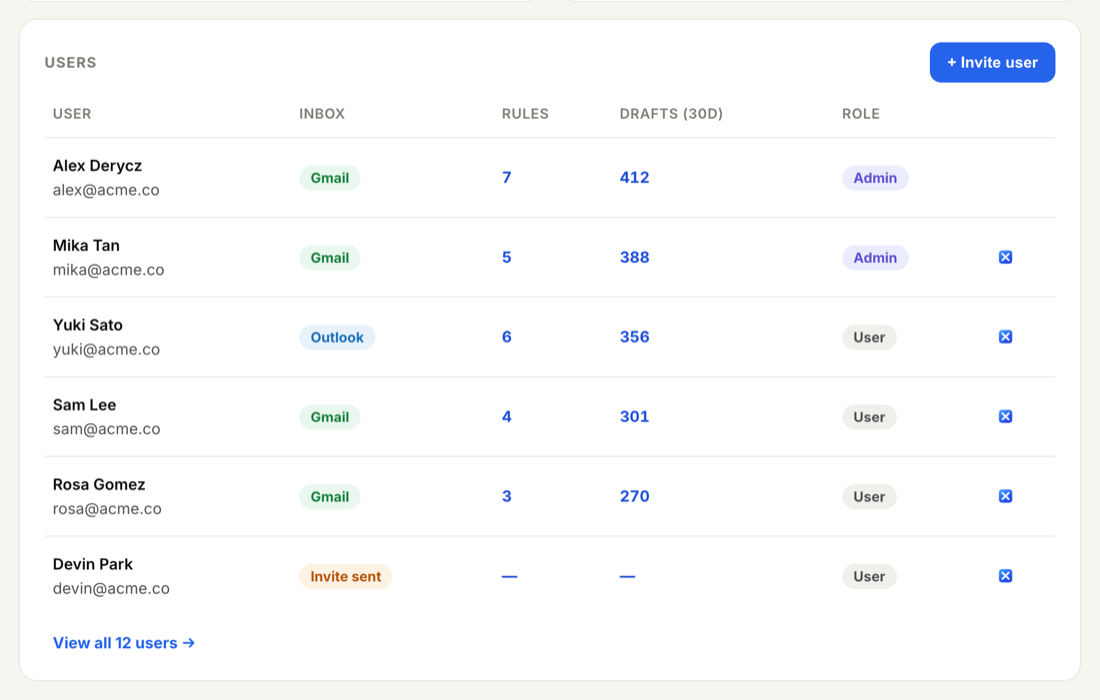
Roles are an ENTERPRISE feature. You set them when you invite someone, and you can change them later from Admin → Users.
Owner
The account owner. There is one Owner: the person who set up the account. The Owner has full control over everything, including billing and the whole team. An Owner can do anything an Admin can do, and is the only role that cannot be removed from the account.
Admin
An Admin manages the whole account. That means they can:
- Invite and manage teammates, and set each person's role.
- Handle billing, including the plan, payment method, and invoices.
- Create and edit company shared rules that roll out to the team.
- Set company-wide defaults for writing voice and drafting model, reply language, and branding.
- View team activity and the audit log.
One important limit: Admins do not edit a teammate's private rules or drafts. Shared rules are company-wide and an Admin owns those; everything a teammate builds for their own inbox stays private to them.
User
A User manages only their own inbox: their own rules, drafts, and personal settings. They can use any shared rule an Admin has rolled out to the team, but they cannot manage other people, billing, or company settings.
- Manage billing & plan — Owner and Admin.
- Invite & manage users — Owner and Admin.
- Create & edit shared rules — Owner and Admin.
- Set company defaults (voice, model, language) & branding — Owner and Admin.
- View team activity & audit log — Owner and Admin.
- Manage their own rules, drafts & settings — everyone.
- Use shared rules rolled out to the team — everyone.
Give Admin only to people who should manage billing and company-wide settings. Everyone else works perfectly well as a User — they still get their own rules, drafts, and any shared rules you roll out.
Open Admin → Users, find the teammate, and update their role from the controls next to their name. Changes take effect right away. For the full walkthrough of adding and removing people, see Invite and manage users.