
Create your first rule (step by step)
A rule is how you teach InboxOji to handle one kind of email for you. This walkthrough takes you from nothing to a working, published rule that drafts a real reply — start to finish, in a few minutes.
You will set up one rule, test it on a real example, make it live, and then watch a draft appear on a real email thread. Nothing gets sent automatically. Every draft waits in your inbox for you to read and send.
Your first rule should be an email you answer often and answer the same way most of the time. Good first candidates:
- Booking or appointment requests
- Invoice and payment questions
- "Do you offer X?" enquiries
The best first rule is frequent (so you see the value quickly), fairly predictable (the reply is similar each time), and low-stakes (a small wording slip while you are getting started is no big deal). Pick one situation and set the others aside for now.
-
Open Rules and start a new one
Go to Rules and click New rule. A fresh rule appears in the Drafts section, where it stays inactive until you publish it.
-
Name it for the situation
Give the rule a plain name that describes the email — for example, "Invoice questions". The name is just for you. Once the rule is live, InboxOji reads incoming mail and only acts on messages that match a rule like this one — everything else stays private and untouched.
-
Describe the situation and reply
A rule describes when it applies and how the reply should read. Write the "When:" in everyday language — for example, "When someone asks where to find their invoice or when payment is due." Then describe the reply you want. You can add more rules later for other situations; for your very first one, keep it simple. See Add and edit rules for the details.
-
Optional: add the details the reply needs
If the reply should include something specific — a booking link, an address, a refund policy — give InboxOji that material so it gets it word-for-word right. PRO+ Variables hold reusable values like
{{booking_link}}, Snippets hold ready-made blocks of text, and a per-rule Knowledge base lets you attach files like a price list or policy. Skip this step if your reply does not need any of it. -
Test it before you trust it
Open the rule's Test panel and paste in a real example of the kind of email this rule should handle. InboxOji shows you whether it matched and the exact draft it would write — without touching any real mail. Read the draft. If it sounds like you and says the right thing, you are ready. If not, adjust the rule's wording and test again. More on this in Test a rule.
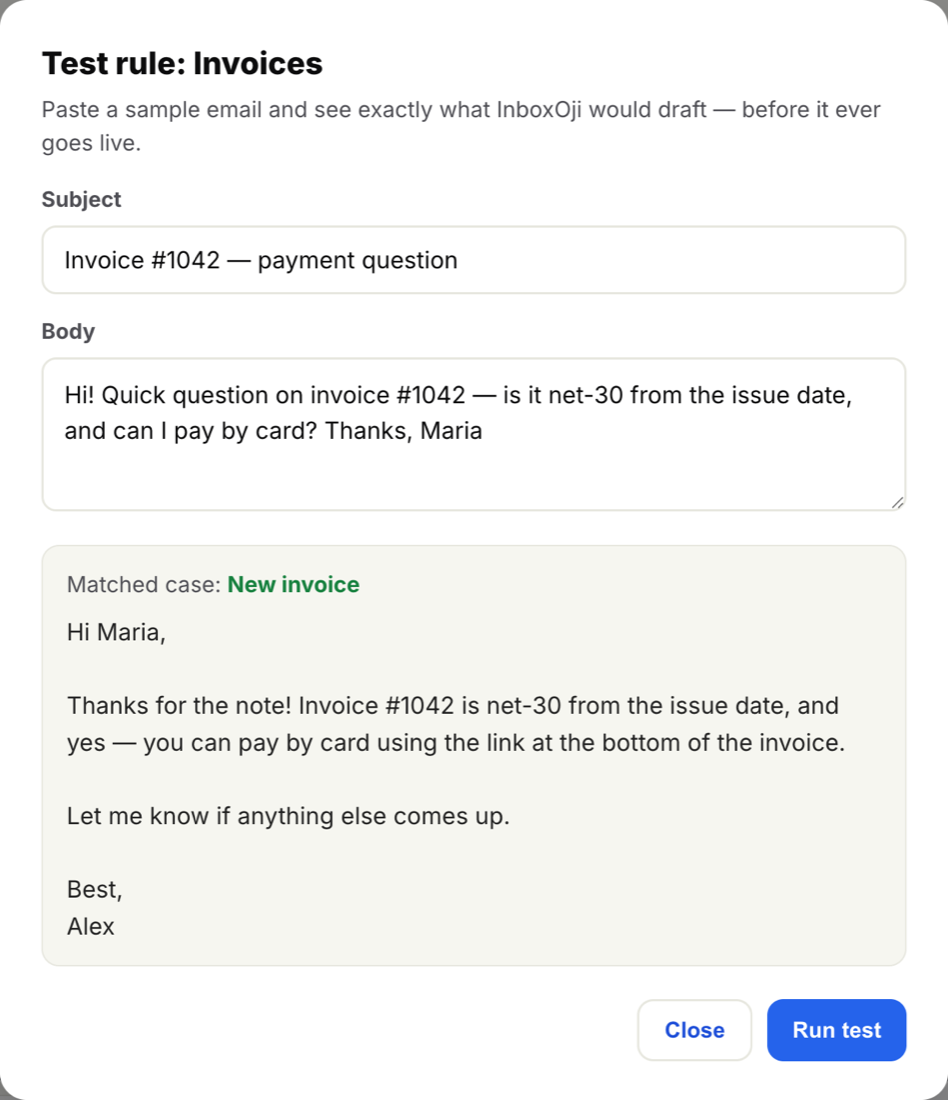
Paste a real email and see the matched rule and the exact draft — all before any live mail is touched. -
Make it live
A rule only starts drafting once it is live. Drag the rule from the Drafts section into the Published section (or hit Publish). That is the moment it goes live and begins drafting replies on matching mail. See Draft vs. Published for what changes.
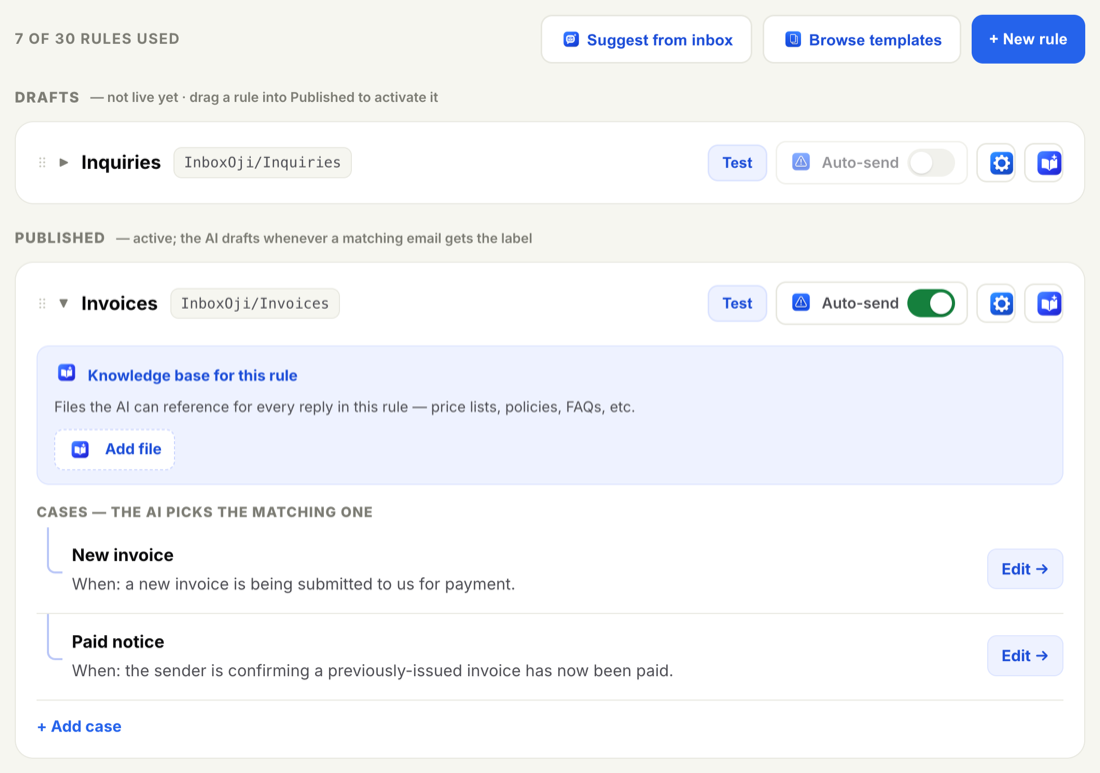
Rules live in Drafts until you move them into Published. Only live rules draft on real email. -
Watch the draft appear
That's all the setup there is — no labels, no filters, nothing to switch on in Gmail. From here, InboxOji reads your incoming mail and, the next time a message matches this rule, writes a ready-to-send draft and leaves it on the thread within a short while. Open it, read it, and send when you are happy. You stay in control of every send.
Start with exactly one rule. Live with it for a few days, see how the drafts feel, and refine the wording. Once it is reliably saving you time, add a second. One solid rule beats five half-finished ones.
With your first rule working, you can grow it at your own pace:
- Add more rules as you notice other situations — each new rule makes InboxOji cover more of your email accurately.
- Refine your voice in Settings if the drafts are close but not quite your tone. The change applies to every rule.
- Consider auto-send later — not yet. For truly routine replies you can let InboxOji send automatically, but only once you have tested a rule thoroughly and trust it completely. Auto-send is off by default, opt-in per rule, and reversible. There is no rush.
Stuck or unsure how to word a rule? Reach out any time at support@inboxoji.com.