
Add and edit rules
A rule tells InboxOji about one situation you handle, and how you want the reply to read. This is where you create and shape your rules — teaching InboxOji the difference between, say, a new booking request and someone asking to cancel by giving each its own rule.
Each rule covers one situation you handle often. When an email arrives, InboxOji picks the single rule that matches it and writes a draft in that voice. If nothing fits, it drafts nothing. So the better each rule describes its situation, the better your drafts.
New to how rules work? Start with How rules work, then come back here.
Go to Rules and click a rule to expand it. You will see its short "When:" line describing when it applies, the reply guidance, and its knowledge base, plus a way to add more rules.
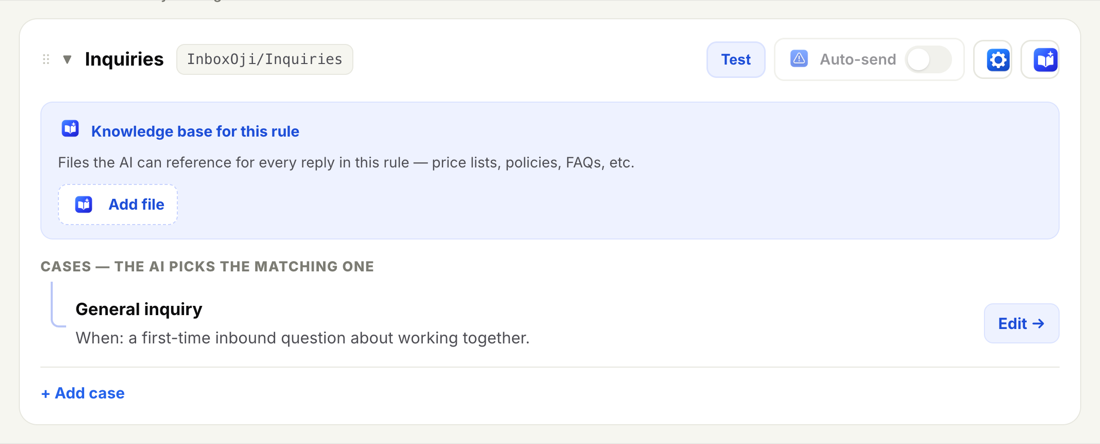
- Click + Add rule to create a new one.
- Click a rule (or its Edit) to change it.
A rule has three parts. Keep them short and specific.
- A name
A few words so you recognise it at a glance, like "New booking" or "Reschedule request". The name is just for you.
- A "When:" description
Plain language describing the situation this rule is for. For example: "The sender is asking for our prices or a quote." This is what InboxOji uses to decide whether the rule matches an incoming email.
- How the reply should read
Describe the draft you want: its tone, roughly how long it should be, and what it needs to say or include. For example: "Warm and brief. Thank them, confirm we have space, and ask for their preferred date."
Each rule also has a simple creativity-and-length control. Dial it down for replies that should stay close to a set wording, and up when you want the draft to adapt more freely to each email. When in doubt, leave it in the middle and adjust after you have seen a few drafts.
Keep each rule tight and distinct. InboxOji matches by what the email is actually about, so if two rules describe overlapping situations the draft can come out muddy. Split by intent instead: "New booking" and "Reschedule request" are two clear rules, not one fuzzy "Booking stuff" rule.
On Starter, you build a handful of rules, which is enough for the topics you answer the same way every time.
On Pro and Enterprise PRO+, you can create many more rules. That lets you cover a whole topic and its natural variations, each rule getting its own tailored draft.
To change a rule, open it and click it (or its Edit). Update the name, the "When:" line, or the reply guidance, then save. Your change applies to drafts from that point on.
You can reorder rules to keep the list readable, but order does not affect matching. InboxOji chooses the rule by what each email is about, not by position in the list, so put them in whatever order makes sense to you.
To remove a rule, open it and delete it. The rest of your rules stay exactly as they were.
Editing rules never sends anything. InboxOji only writes a reply and leaves it waiting for you, and only on emails that match a live rule. Nothing goes out without you unless you have deliberately turned on auto-send for a rule.
After adding or editing a rule, test it. Paste a real example email into the rule's Test panel and see whether InboxOji matches it and the exact draft it would write. It is the fastest way to confirm a rule is doing what you meant. See Test a rule.
For help shaping a rule so it fits the right mail, read Write a rule that fits.