
Invite and manage users
The admin console is where you run your team: invite people, set what each one can do, and remove anyone who leaves. Each teammate gets their own inbox, their own rules and their own drafts — you just add and manage the members. The admin console is part of ENTERPRISE.
Inviting and managing users is for owners and admins. If you are a regular user, you manage your own inbox and rules; there is nothing for you to do here. For who can do what, see Roles and permissions.
Open the admin console. The overview gives you the whole team at a glance — combined stats for everyone, and a "Needs attention" panel that flags anything worth a look, like a teammate whose mailbox has disconnected.
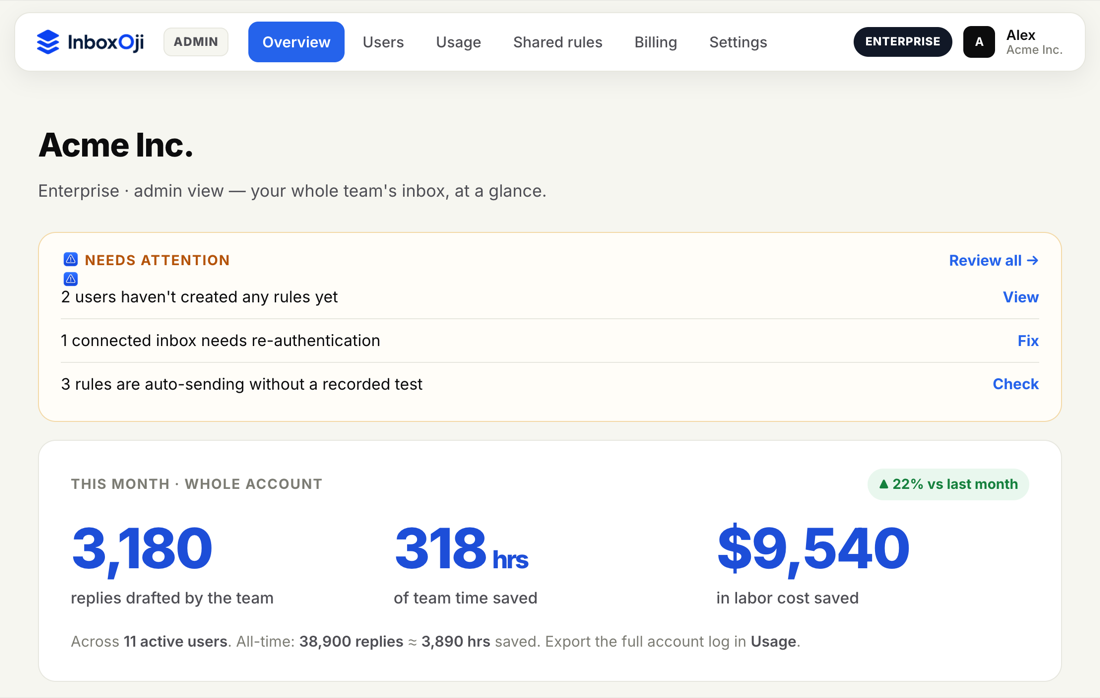
From here you reach the rest of the admin pages — Users for your team members, and company settings for shared rules, default voice and branding. This article covers users; the others have their own articles.
Go to Users. You will see a table of everyone on the team, each with their role and when they were last active.
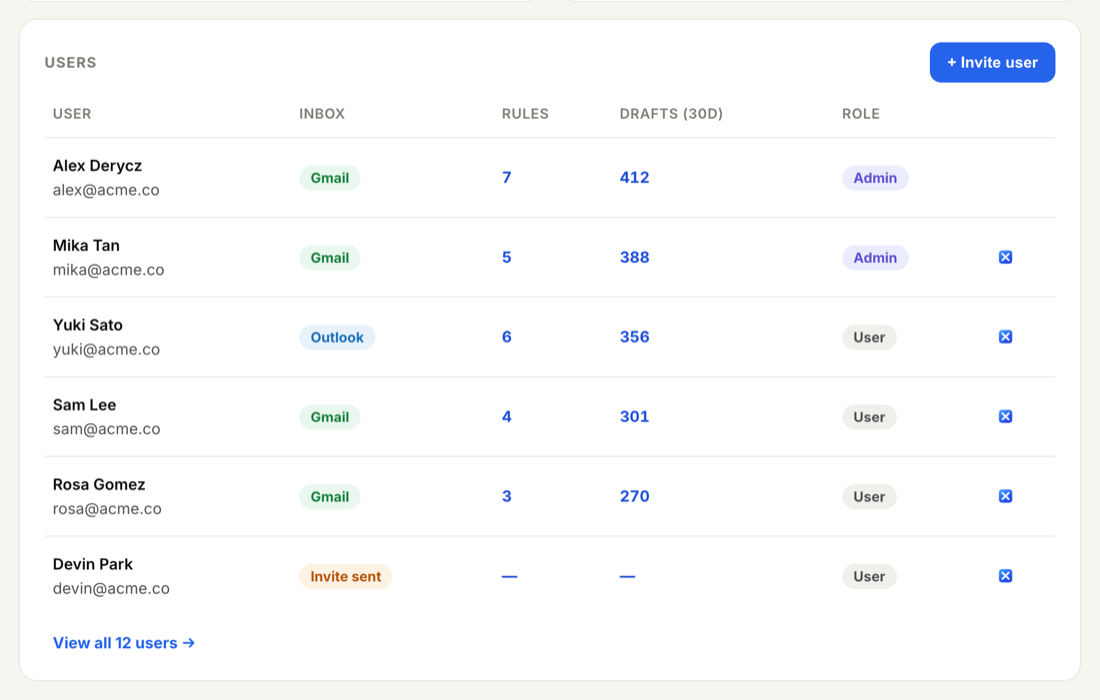
- Click Invite user
Find the Invite user button on the Users page.
- Enter their email
Type the work email address of the person you want to add.
- Pick a role
Choose Admin or User. Admins can manage the account; Users manage only their own inbox. See Roles and permissions if you are unsure which to pick.
- Send the invite
They receive an invitation by email. When they accept, they connect their own Gmail and start building their own rules.
You do not set up their inbox for them. Each teammate connects their own Gmail and writes their own rules — the same way you did when you started. If your team uses shared rules, those are rolled out separately; see Shared rules.
Everyone on the team works in their own space. A teammate's inbox, rules and drafts are theirs. As an admin you can see team-wide activity and manage who is on the team, but you do not edit a teammate's private rules or read their drafts for them. InboxOji only ever looks at the emails each person's own rules match — never anyone's whole inbox.
On the Users page, each row has controls for that person. From there you can:
- Change their role — switch someone between Admin and User as their responsibilities change.
- See their last activity — a quick read on who is active and who has gone quiet.
- Remove them — when someone leaves the team, remove them. That revokes their access to InboxOji and frees up their seat for the next person.
Removing a teammate only takes that one person off your team and frees their seat. Your account, your other members and all their rules stay exactly as they were. Deleting the whole account is a separate action in Settings.
Your plan includes a set number of seats — one per active teammate. As you invite people, those seats fill up. Removing someone frees their seat again, so you can re-use it for a new hire.
When you reach your seat limit, InboxOji prompts you to add more. Rather than a fixed price tier, you get a quick quote for the seats you need so it fits your team size. To talk through adding seats, reach us at support@inboxoji.com.