
Roles: admin and user
InboxOji has three roles: Owner, Admin and User. The role decides what someone sees in the console and what they can change. This guide covers what each role can do, so you can give people exactly the access they need.
Every person on your account holds one role. The Owner and Admins run the team from the admin console; Users work only inside their own inbox. You set a person's role when you invite them, and you can change it later from the Users table.
Owner
The Owner is the person who set up the account — one individual, with full control. The Owner can do everything an Admin can do, and is the account's ultimate point of contact. There is only one Owner.
Admin
An Admin manages the whole account. That means inviting and managing users, handling billing, creating and editing company-shared rules, setting company defaults (voice, language, model, branding and security), and reviewing team usage and the audit log. The one thing an Admin does not touch is a teammate's private rules — those belong to each user. Admins own the shared rules instead, which keeps company wording consistent.
User
A User manages only their own inbox: their own rules and drafts. They can use any shared rules you've pushed to them, but they can't edit those shared rules or see anything about other teammates. This is the right role for most of your team.
Grant Admin sparingly. Admins can change billing, company defaults and branding for everyone, and can see account-wide usage. Most teammates only need the User role — keep Admin for the one or two people who actually run the account.
Here's the quick rundown of the main capabilities by role.
- Manage billing & seats — Owner and Admin. Users have no access to billing.
- Invite & manage users (roles, archiving) — Owner and Admin.
- Create & edit company-shared rules — Owner and Admin. Users can use shared rules but can't change them.
- Set company defaults (voice, language, drafting model) — Owner and Admin.
- Branding & white-label (logo, brand color, footer) — Owner and Admin.
- View the audit log & team usage — Owner and Admin.
- Manage their own inbox, rules & drafts — everyone, including the Owner and Admins for their own inbox.
- Edit a teammate's private rules — no one. Private rules belong to each user alone.
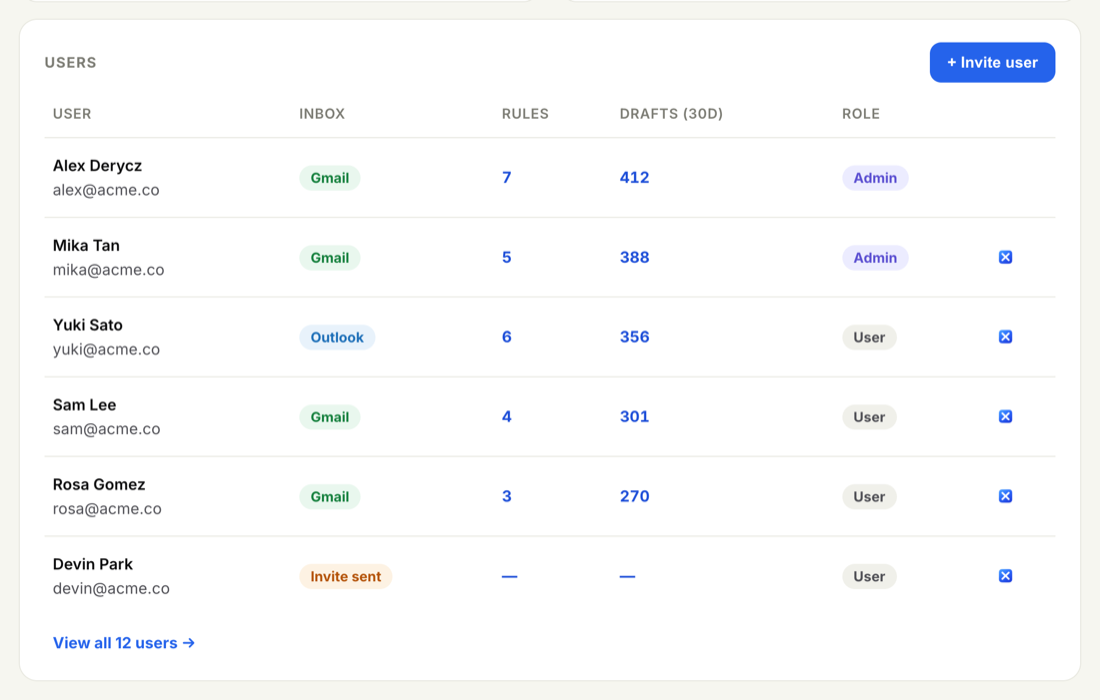
You can promote a User to Admin, or step an Admin back down to User, straight from the Users table.
- Open Users
Go to Users and find the person in the Active users table.
- Change the role
Use the role dropdown in their row — switch between Admin and User. The change applies right away and is recorded in the audit log.
To fix a name or email at the same time, or to remove someone's access, see Edit a user's name, email or role. To add new people, see Invite teammates.
Your teammates also have a plain-English version of how roles work in their own Help center: Roles and permissions. Point Users there when they ask why they can't see the admin console.