
Invite teammates
Adding someone to your team takes a minute. You send an invite, they sign in and connect their own Gmail, and they start drafting on the shared rules you've already built.
Everyone you add gets their own inbox and their own rules. They can use the company shared rules you push to them and build private rules of their own. Here's how to bring someone on.
-
Open Users
From the admin console, go to Users. You'll see your team table and a Seats meter showing how many seats are in use.
-
Click "+ Invite user"
Enter the person's email address. Use their work email so it's clear who's who in the team table and on the audit log.
-
Choose a role
Pick User or Admin. Most people are Users, who manage only their own inbox and rules. Choose Admin only for someone who should manage billing, company settings and other teammates.
-
Send the invite
They receive an email invitation. They sign in, connect their own Gmail, and they're ready to draft. Your company shared rules can switch on automatically if you've set that company default.
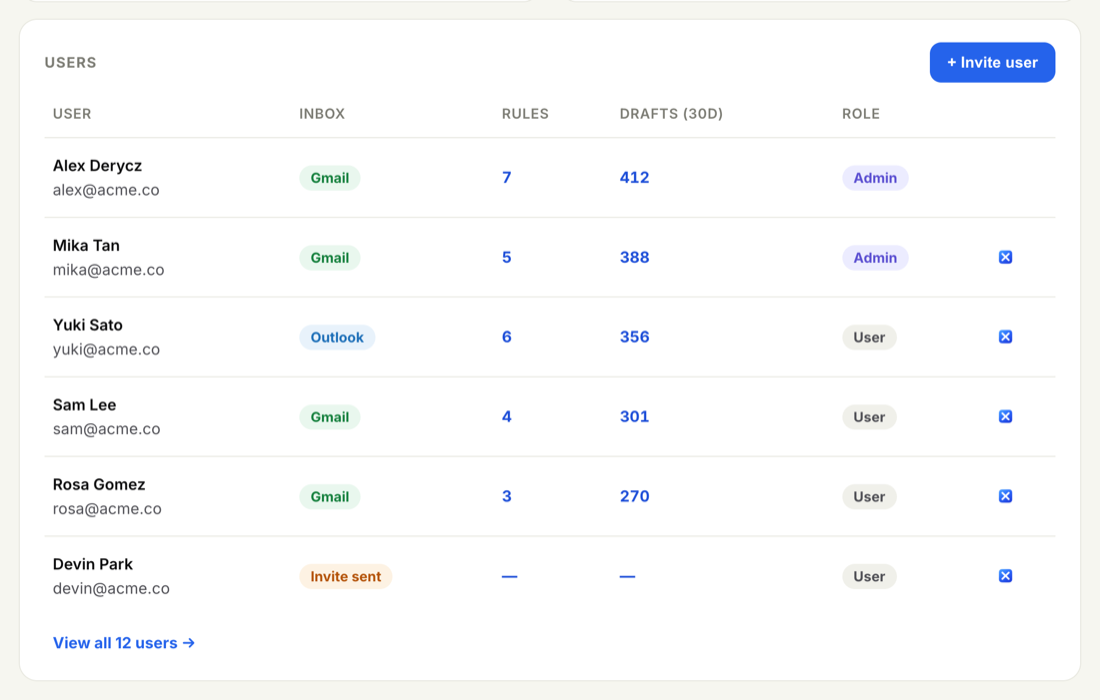
Once a teammate connects Gmail, they appear in the Active users table with their name, email, role, inbox type, and counts for rules, drafts and last active. From there you can change their role inline or open Edit to fix a name, adjust their role, or archive them later. Their private rules stay private — admins manage company shared rules, not a teammate's own.
For what each role can and can't do, see Owner, Admin and User roles. To learn how shared rules reach the people you invite, see Create a company shared rule. New teammates can pick up the rest from the user Help center.
Invite people with their work email, and reserve the Admin role for those who should manage billing and company settings. Everyone else should be a User. See Owner, Admin and User roles for the full breakdown.
Each active user takes one seat. Your Seats meter shows how many of your seats are in use, on both Users and Billing. When you're close to the limit, use Request more seats and we'll prorate and send a quote. For how seats are counted and billed, see Seats and how they're billed.
Turn on "Auto-apply company-shared rules to new users" in Settings so every new teammate starts with your shared rules already on — they're useful from day one.