
Edit a user’s name, email or role
People change names, fix a typo in their email, or step up to help run the account. You edit any of it from the Users table in a couple of clicks.
Everything starts on Users. The Active users table lists everyone on your account — name, email, role, inbox type, their rule and draft counts, and when they were last active.
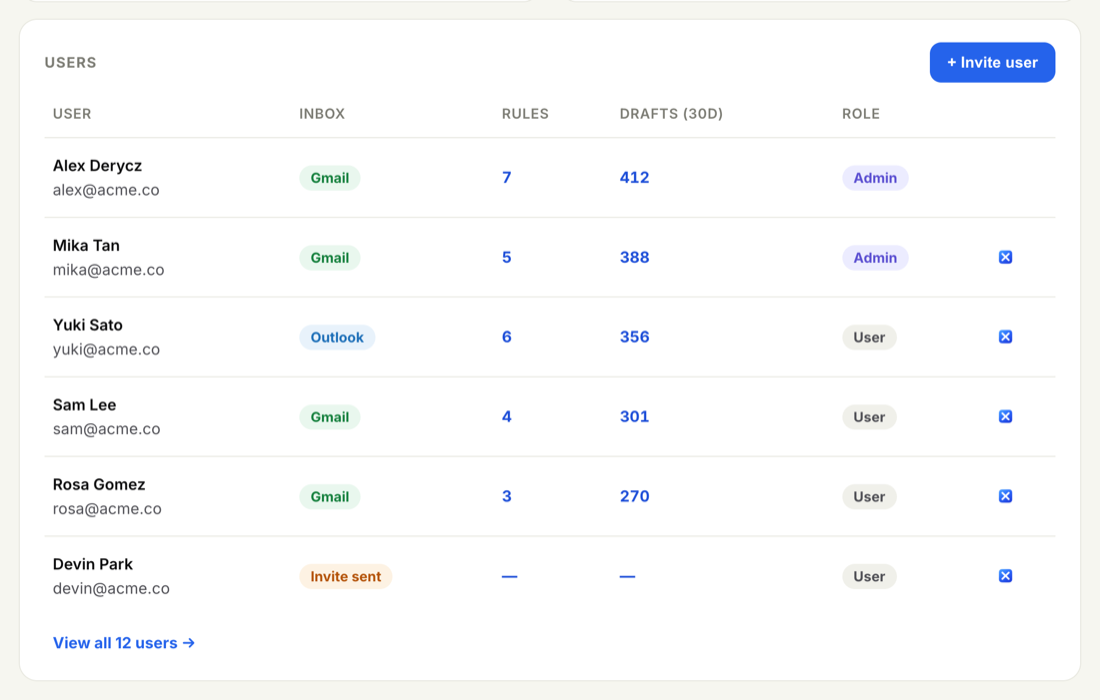
On a large team, use the Search box above the table to jump straight to someone by name or email instead of scrolling.
- Click Edit on their row
This opens the edit-user panel for that person.
- Fix the name or email
Correct a misspelled name or update an email address. The person keeps their rules, drafts and history — you are editing their details, not starting them over.
- Change the role if you need to
Switch a teammate between User and Admin. You can also change the role inline, right in the table, without opening the panel.
- Save
Your change is recorded in the audit log with who made it and when.
Role changes take effect on the person's next actions — there is nothing for them to reinstall or reconnect.
An Admin can invite and manage users, change company settings, and see billing. Only promote people who should run the account. See Roles: admin and user for exactly what each role can do.
The same Edit panel is also where you Archive someone when they leave — their rules and history stay on file for your records. That is covered in Archive or remove a user.
Looking to add someone new instead? See Invite teammates. For how a person builds and runs their own inbox, point them to the user Help center.