
The audit log
The audit log is your company-wide record of admin actions and rule changes — who did what, and when. It's there for accountability, compliance and answering the occasional "wait, who changed that?"
Every time someone with admin access changes the account, the audit log notes it: an invite sent, a role switched, a shared rule created or edited, a company default updated, a seat added. Each entry shows the action, the person who took it, and the time. You don't have to switch anything on — the log records as you go.
The audit log lives under Settings, so it's visible to the Owner and to Admins — the people who run the account. Users never see it; they work only inside their own inbox. If you need a refresher on who holds which role, see Owner, Admin and User roles.
- Go to Settings
Open the admin console and choose Settings from the nav.
- Find Security & access
Scroll to the Security & access section. It's the same place you set the session timeout.
- View audit log
Select View audit log to open the full record of admin actions and rule changes.
- Review or filter
Read the entries newest-first, or filter by person and by date range to narrow in on a specific change or a specific teammate's activity.
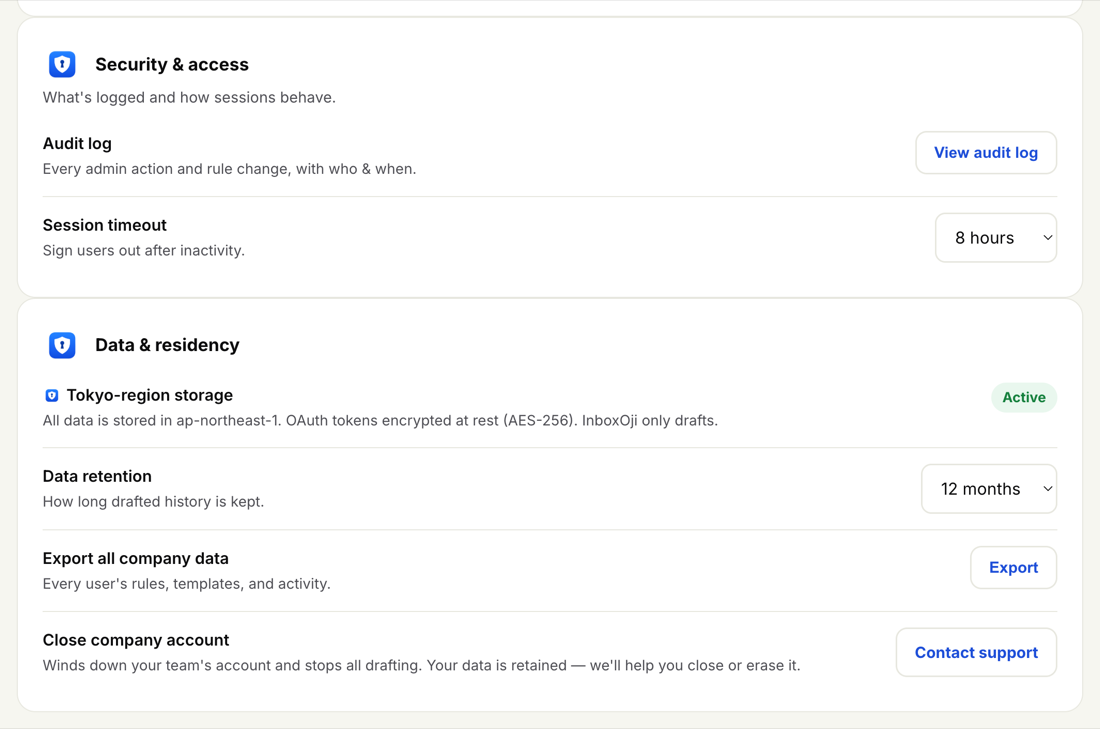
The audit log is about the account, not about email. It tracks the structural changes admins make — the things that affect the whole team or another teammate's setup.
- Inviting, editing, archiving or re-roling a user
- Creating, editing or deleting a company-shared rule
- Changing company defaults — voice, language, drafting model, branding
- Adjusting security settings such as the session timeout
- Billing and seat changes
The audit log records account and company actions — not the contents of your team's email. InboxOji only drafts; it doesn't log, read back or store the text of anyone's messages in here. What you'll see is the trail of admin decisions, not inboxes.
The log is most useful when a question comes up after the fact: a shared rule's wording changed and you want to know who edited it, a teammate's role looks wrong, or a compliance review asks for a record of who could change what. Filter to the person or the date in question and the answer is usually one entry.
Your teammates have a plain-English version of this in their own Help center: The audit log. Point Users there if they ask what's being recorded about their account.
For where your data sits and how long drafted history is kept, see Data, residency and retention. To control how long people stay signed in, see Session timeout.