
Session timeout
Session timeout signs teammates out of InboxOji after a stretch of inactivity, so an unattended screen doesn't stay open. You set one window for the whole team.
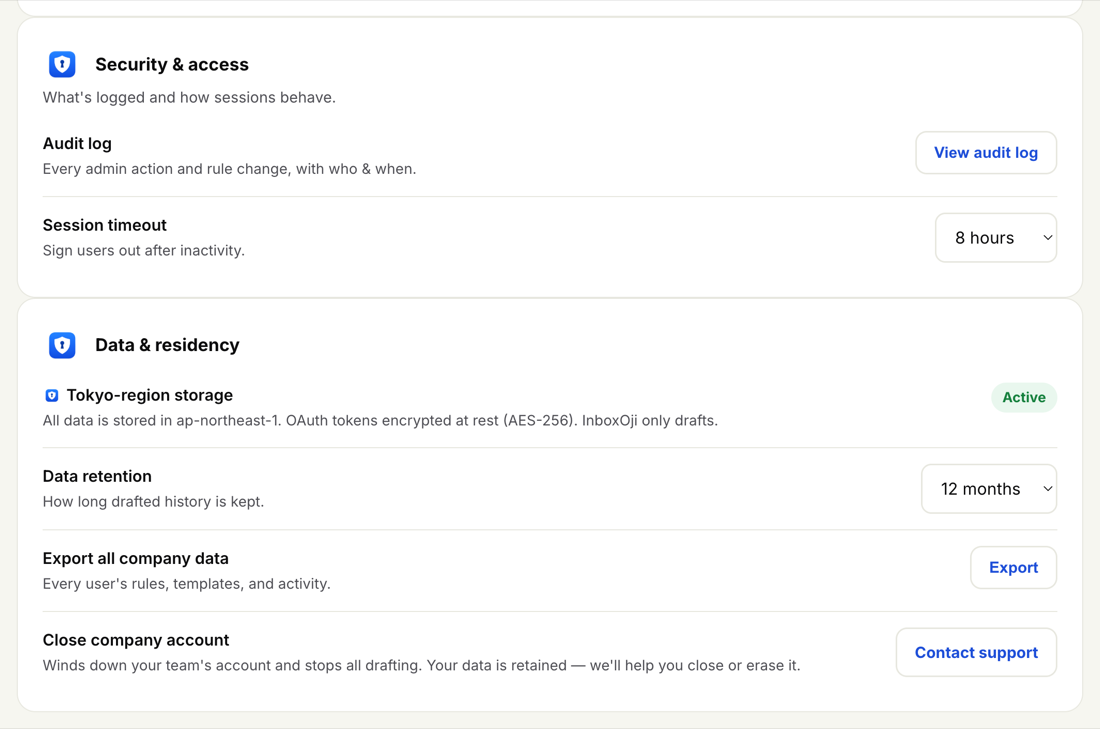
The control lives under Settings, in the Security & access section. Pick a window and it applies to everyone on the account right away.
- Open the admin console
Go to Overview, then choose Settings.
- Find Security & access
Scroll to the Security & access panel. Session timeout sits alongside the audit log.
- Choose a window
Pick how long an idle session stays signed in: 8 hours, 24 hours, 7 days, or 30 days. Shorter is tighter; longer is more convenient.
- Save
The setting applies to the whole team and is recorded in the audit log with who changed it and when.
After the chosen period of inactivity, a teammate is signed out and asked to sign in again the next time they open InboxOji. Activity resets the clock, so people working through their inbox are not interrupted mid-task.
Signing back in uses their normal Gmail login. If a teammate has turned on two-factor authentication, they confirm that too — the timeout doesn't change how they sign in, only how often. Their rules, drafts and history are untouched; only the session ends.
Pick a shorter window if teammates use shared or public computers — an 8- or 24-hour timeout means a walk-away screen locks itself before someone else sits down. For people on their own trusted laptops, a longer window saves repeated logins.
Two-factor authentication is set up by each teammate, not from the console. Point anyone who hasn't enabled it to Two-factor authentication in the user Help center. To see exactly who changed this setting and when, open The audit log.