
White-label branding
On Enterprise, you can make InboxOji look like your company's own tool. Add your logo and brand color, and the whole app feels like part of your business for everyone on the team.
White-label branding is an ENTERPRISE feature. It changes how InboxOji looks across the app for your team. The work each person does stays the same, but the logo at the top and the accent color throughout match your company instead of ours.
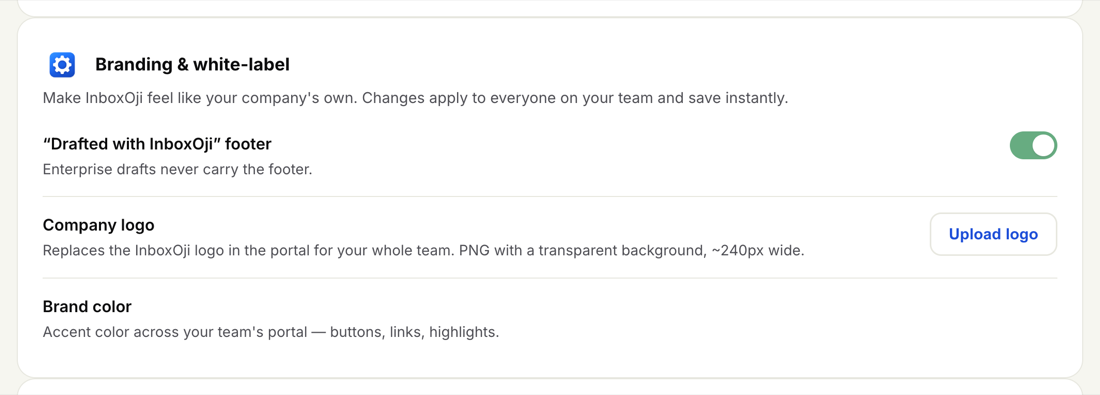
Open Admin -> Settings and find the Branding & white-label section. Everything here is managed by an owner or admin. Changes apply to the whole team and save instantly, so the moment you update your logo, every teammate sees it the next time their app loads.
Your company logo
Replace the InboxOji logo with your own. Upload a PNG with a transparent background, around 240px wide. Your logo then appears at the top of the app for the whole team.
Use a logo with a transparent background. A solid white or colored block behind your logo will show as a rectangle on the header. A transparent PNG sits cleanly against the header instead.
Your brand color
Set a brand color and InboxOji uses it as the accent throughout the app for buttons, links and highlights. Pick the color your team already recognizes, and the app starts to feel like an extension of your other tools.
The "Drafted with InboxOji" footer
By default, drafts can carry a small "Drafted with InboxOji" line. On Enterprise you can turn this off, so the replies your team sends contain only your words, with no mention of InboxOji.
- Open Branding & white-label
Go to Admin -> Settings and scroll to the Branding & white-label section.
- Upload your logo
Add a PNG with a transparent background, roughly 240px wide. It replaces the InboxOji logo at the top of the app.
- Choose your brand color
Set the accent color used for buttons, links and highlights across the app.
- Decide on the footer
Leave the "Drafted with InboxOji" footer on, or toggle it off so drafts carry only your wording.
There is no separate save step to hunt for. Branding applies to everyone on the team and takes effect right away.
Branding sits alongside your other shared Enterprise settings. To set the tone and AI model your whole team starts from, see Company voice & model. To control who can change these settings, see Roles & permissions.