
Variables
Variables are the small facts you paste over and over — your booking link, your address, your phone number, your opening hours. Save each one once, and InboxOji drops the exact value into a draft wherever it fits, so the details are always right. PRO+
A variable is a reusable value with a short name. You save the value once and refer to it by a token — written with double curly braces, like {{booking_link}} or {{address}}. When InboxOji writes a draft, it swaps the token for the real value you stored.
The point is accuracy. A long booking URL is easy to mistype and easy to paste wrong. Stored as a variable, it comes out perfect every time — the AI never fumbles the link, drops a character from your phone number, or gives last year's address.
Save it once. It is always correct after that.
You manage variables on the Variables page. Each one has a name, a value, and a scope.
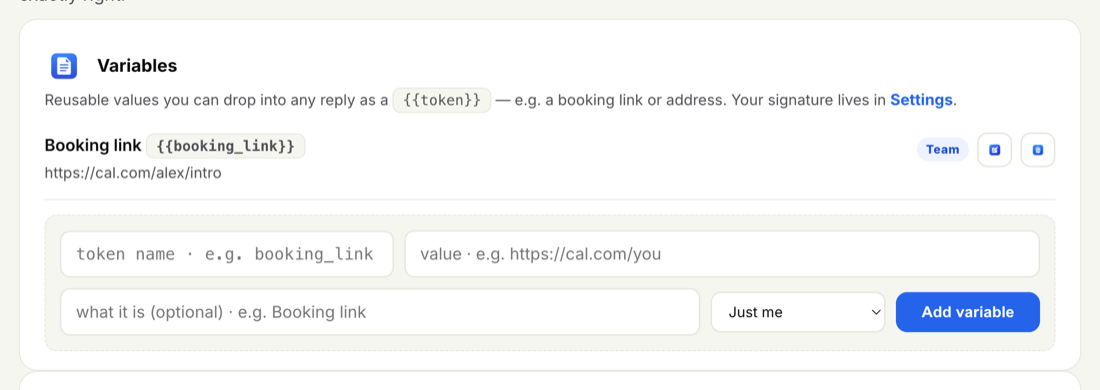
-
Give it a token name
This becomes the token, so keep it short and plain —
{{booking_link}},{{address}},{{hours}}. You will see it written in curly braces once it is saved. -
Enter the value
The real thing the token stands for: the full booking URL, the street address, the phone number. This is exactly what lands in a draft.
-
Add an optional label
A plain-language note for yourself, like "Calendly booking page". It helps you recognise the variable at a glance and is never shown to your recipients.
-
Choose the scope
Keep it to just you, or share it with the team. More on that below.
-
Add variable
It saves to your list and is ready to use straight away — no need to touch your rules.
You do not type tokens into your rules. When you describe a rule in plain language — "send them my booking link", "give them our address" — InboxOji recognises what you mean and places the matching variable where it belongs in the reply. You set the value once; the AI handles the rest.
There is one place you can write a token by hand, and that is inside a snippet. Snippets are fixed blocks of text the AI drops in word for word, so referring to {{booking_link}} inside a snippet keeps the link current even as the wording stays exactly as you wrote it.
Every variable is scoped one of two ways:
- Personal — only your own drafts use it. Best for values that are yours alone, like a personal calendar link.
- Team — shared across everyone on the account. Best for facts that should read the same no matter who is replying: the office address, the main phone number, the company booking page.
Team-shared variables keep everyone consistent. Update the office address in one place and every teammate's drafts use the new value from then on — no one is left quoting an old number.
Anything you find yourself pasting again and again — links, addresses, account IDs, opening hours — belongs in a variable. Save it once and it is always correct, and when it changes you update one value instead of hunting through old replies.
Variables handle the short, exact values. For whole blocks of ready-made text — a booking call-to-action, a policy, directions to your door — see Snippets. To give the AI documents it can reference for accurate answers, see the Knowledge base.