
Snippets
Snippets are ready-made blocks of text you save once, so InboxOji can drop them into a reply word-for-word. A booking call-to-action, directions to your studio, your cancellation policy, a new-client onboarding checklist — write it carefully a single time, then have it appear exactly the same in every draft that needs it. Snippets are a PRO+ feature.
Most of a draft is written fresh for each email, in your voice. But some passages should never change wording: the steps to book, the line about refunds, the address and parking note. A snippet pins that text down. When a reply calls for it, InboxOji pastes the snippet in verbatim instead of paraphrasing — so the wording stays exact and approved every time.
Snippet or variable?
A variable is a single value, like a link or a phone number. A snippet is a whole passage — a sentence, a paragraph, a short list. If you find yourself writing the same chunk of text again and again, that is a snippet. If it is one short value you reuse, that is a variable.
Open Snippets. You will see the snippets you have saved and a form to add a new one. Variables and snippets share this page, so you can manage both reusable values and reusable passages in one place.
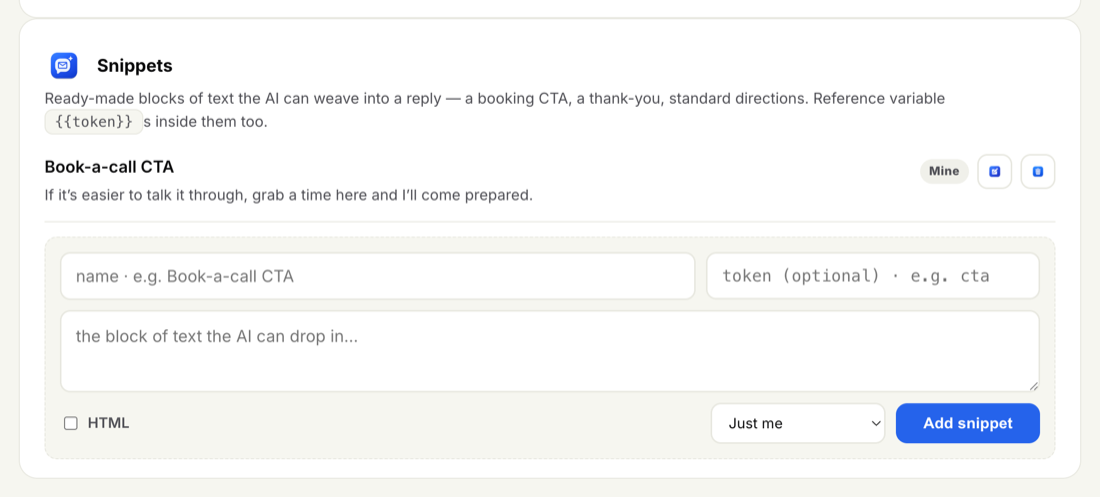
- Give it a name
A short label so you recognise it at a glance, like "Cancellation policy" or "Book-a-call CTA". The name is just for you.
- Add a token (optional)
You can give the snippet a token, like
{{booking_cta}}, if you want to call it by name. InboxOji will also weave a snippet in on its own when a reply clearly needs it, so a token is handy but not required. - Paste the block of text
Type or paste the exact passage you want — wording, line breaks and all. This is what gets dropped into drafts unchanged, so write it the way you want it to read.
- Choose who can use it
Keep the snippet to yourself, or share it with your team so everyone's drafts use the same approved wording.
- Add snippet
Save it. From now on it is available for your drafts.
Snippets are perfect for policy and legally-sensitive wording you need identical every time — a refund policy, a privacy line, terms for a deposit. Because the snippet drops in verbatim, the AI never rephrases it, so what goes out is the wording you approved, word for word.
Snippets can hold variables too
A snippet can contain {{variable}} tokens inside it. For example, a "Book-a-call CTA" snippet might end with "Grab a time here: {{booking_link}}". The fixed wording stays exact, and the variable fills in with the right value as the draft is written. See Variables for how to set those up.
When a reply calls for that standard passage, InboxOji drops the snippet in exactly as written, rather than composing similar text from scratch. The surrounding draft is still written fresh in your voice — the snippet is the part that stays fixed. That is the point: the wording you need to be precise stays precise, while the rest of the reply reads naturally for each email.
Every snippet is scoped either to just you or to your whole team.
- Personal snippets are yours alone — useful for blocks only your inbox needs.
- Team-shared snippets are available to everyone, so the whole team replies with the same approved passages. Sharing across a team is part of ENTERPRISE.
To change a snippet, open it on the Snippets page, edit the name, token, text or scope, and save. New drafts use the updated wording from that point on. To remove one, delete it; drafts written afterwards simply stop using it.
For attaching whole documents the AI can reference — price lists, policies, FAQs — see Knowledge base, which is also PRO+.