
Reading the Activity log
The Activity log is your running record of everything InboxOji has done for you. Every draft it writes and every reply it auto-sends shows up here, so you can see at a glance that your rules are working and how much time they are saving.
You will find it on the Activity page. Think of it as a receipt for the work InboxOji does on your behalf. Nothing happens silently: if a draft was written or a reply went out on its own, it is listed here with the details.
At the top of the page is a summary for the month: how many replies InboxOji drafted, and roughly how many hours that saved you. Below the summary is the log itself, one row for every action InboxOji has taken.
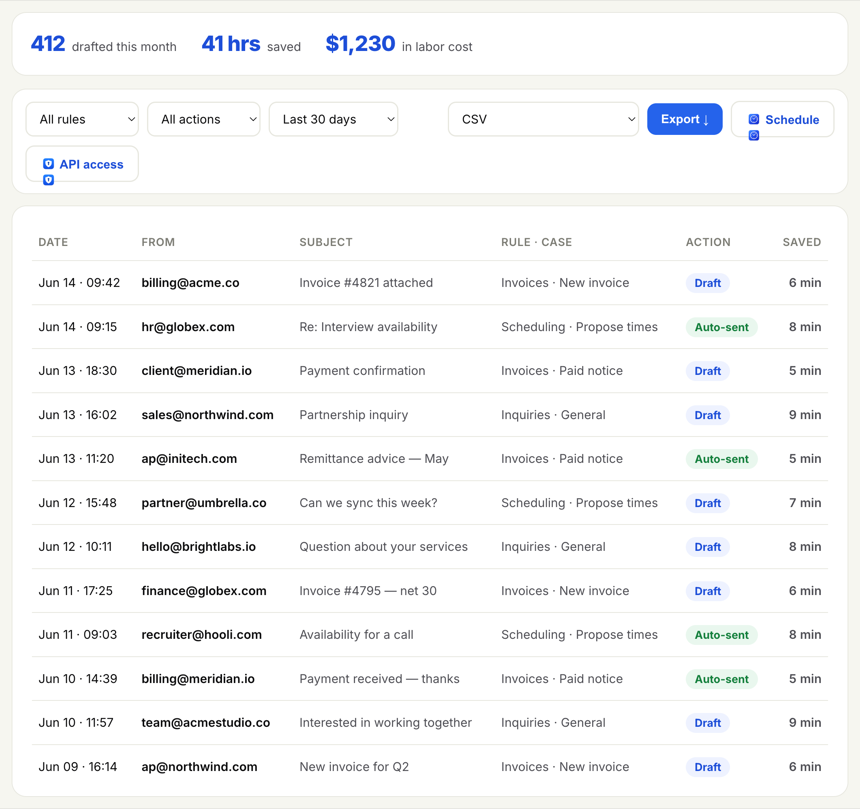
Each row tells you the whole story of one reply:
- Sender and subject — the email InboxOji responded to, so you can recognise it.
- Rule — which rule caught the email. This is how you confirm the right rule is doing the work.
- Action — whether InboxOji wrote a Draft for you to review, or Auto-sent the reply on its own. If you have never turned on auto-send, every row here says Draft.
- Time saved — an estimate of the minutes you did not spend typing that reply yourself.
When the log gets long, the filter bar above the table helps you narrow it down. You can filter by:
- Rule — show only the activity for one rule, for example to check that your "Invoices" rule is pulling its weight.
- Action — show only drafts, or only auto-sent replies. This is the quickest way to audit exactly what has been going out without you.
- Date range — focus on a particular week or month.
Combine the filters to answer a precise question, such as "what did my Invoices rule auto-send last week?" When you have found what you need, you can export the results to keep a copy. See Export your activity for the details and which formats your plan supports.
The log is most useful as a quick health check. A few minutes here tells you whether everything is running the way you expect.
- Confirm a rule is working. After you publish a rule, check back in a day or two. Seeing its drafts appear in the log is your proof that it is catching the right email and writing replies.
- Spot a rule auto-sending more than expected. Filter by the Auto-sent action and scan the list. If a rule is sending more than you intended, this is where you catch it — then open the rule and switch its auto-send back off. See Turn on auto-send.
- See your value. The replies-drafted and hours-saved figures add up over time. The log is the honest tally of what InboxOji has taken off your plate.
On Starter, the Activity page shows your most recent activity. PRO+ keeps your full, searchable history, so you can filter and look back as far as you like.
The Activity log only ever lists the emails your rules handled — the ones that matched a rule you made live. It is never a window onto your whole inbox, just a record of the work you asked it to do.