
Start a shared rule from a template
Templates let you skip the blank page. Pick a ready-made rule that matches a situation your team already handles, and it lands as a shared rule you can adapt and roll out — no need to write one from scratch.
Templates live alongside your own rules in Admin → Shared rules. Each one is a starting point for a common email situation. Choosing a template doesn't lock anything in — once it's added, it's an ordinary shared rule that you own and can change freely. If you'd rather build one yourself, see Create a shared rule.
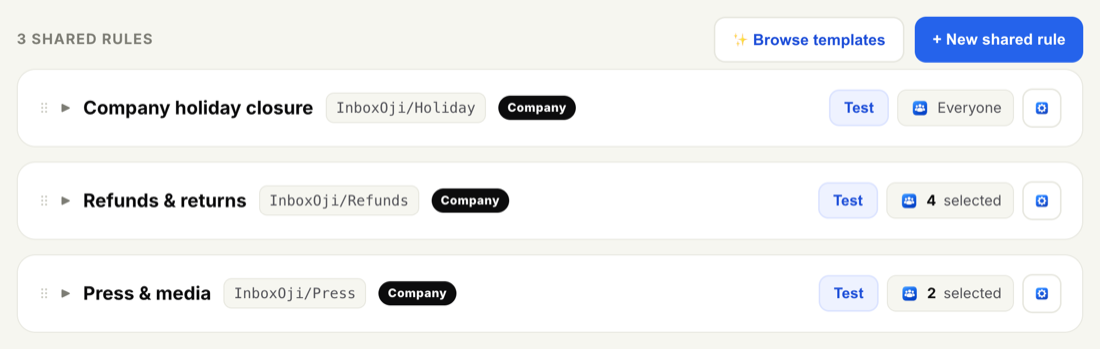
- Open Shared rules
Go to Admin → Shared rules. This is where every company rule, and the templates, live.
- Browse templates
Click Browse templates. You'll see ready-made rules for common situations — the repetitive emails teams answer over and over.
- Pick one that fits
Choose a template that matches something your team actually handles. The closer the match to a real situation, the less you'll need to change.
- Adapt it
The template is added as a shared rule you own. Make it yours: rename it so it's clear at a glance, edit the situation and the reply so the wording fits your business, set who it applies to, and adjust the tone, language and creativity.
- Test before you roll it out
Use the rule's Test button to draft a sample reply and confirm it reads the way you want. Refine and test again, then save to roll it out to the people you chose.
Templates are a fast way to seed your first few shared rules. Add a couple that match your highest-volume situations, refine the wording, then use Test to check them before rolling out widely — that way the team gets consistent drafts from day one.
Once a template is in place, tailor how it applies and reads: Apply a rule to everyone or specific people and Set a shared rule's tone, language and creativity.