
Apply a rule to everyone or specific people
Every shared rule has an "applies to" setting that decides who gets it. Reach the whole team with one choice, or target a region or department by picking specific people. You can also have new teammates start with your shared rules already on.
When you create a company-shared rule, you own it and you decide its reach. Each rule on the Shared rules list shows its scope at a glance: either Everyone, or a count of the people you selected (for example, "5 selected"). Members can't edit a shared rule, so the wording stays consistent no matter how many inboxes it lands in.
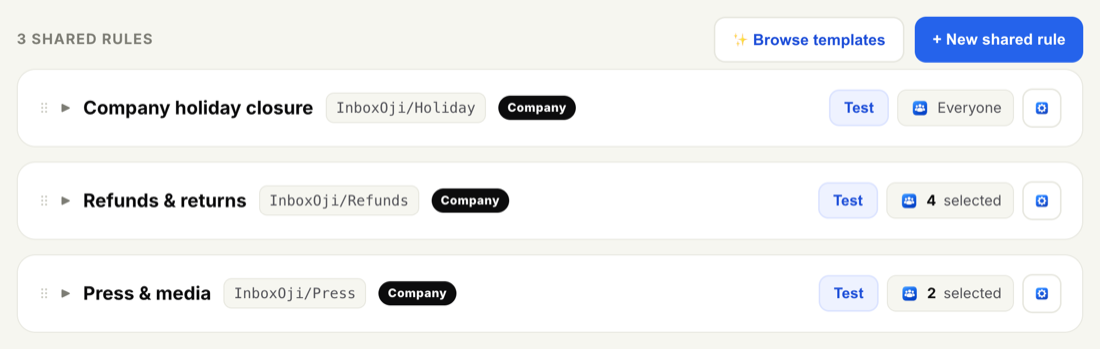
Changing who a rule applies to takes effect for everyone in scope. Add a person and the rule starts drafting in their inbox; remove someone and it stops for them. The rule's wording and settings don't change.
- Open the shared rule
Go to Shared rules and open the rule you want to scope. You can also set this while you build a new one.
- Find "Who does this rule apply to?"
This is the rule's reach. The two choices are Everyone and a list of specific users.
- Choose Everyone or pick people
Select Everyone to send the rule to your whole team. To target it, switch to selecting users and tick the people who should get it — useful for a single region, team or office.
- Save
Save the rule. The list updates to show Everyone or your selected count, and the rule begins drafting for those people right away.
Use Everyone for company-standard replies that should read the same across the business — holiday notices, a standard intake acknowledgement, a refund policy. Pick specific people for rules that only fit one team or region, like a local-language reply or a department's booking flow.
When you invite someone new, you can have your company-shared rules switched on for them from day one — no manual scoping needed. This is a company-wide toggle, not a per-rule one.
- Open company defaults
Go to Settings and open Company profile & defaults.
- Turn on auto-apply
Switch on Auto-apply company-shared rules to new users. From then on, anyone you invite starts with your "Everyone" shared rules already active once they connect their inbox.
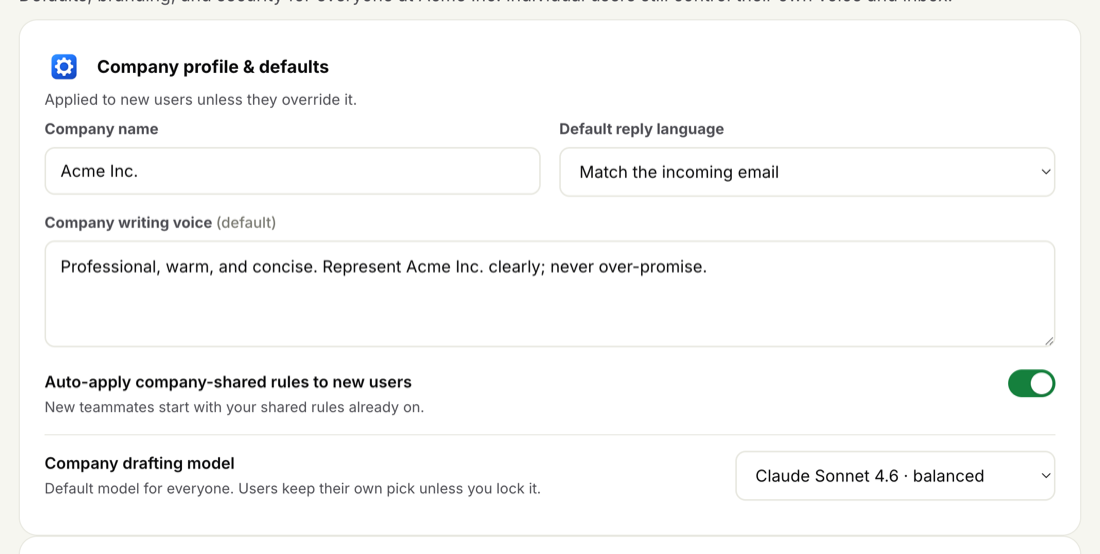
Auto-apply only affects new users going forward. It doesn't change the scope of rules for people already on the team, and it doesn't override a rule you've set to specific users — those still reach only the people you picked.
Want to write a rule before you scope it, or change how it reads? See Create a company-shared rule and Set a shared rule's tone, language and creativity. To check who can manage shared rules, see Roles: admin and user.