
Add or remove seats
Your team grows and changes, and your seat count moves with it. This guide walks through requesting more seats and reducing them, so a plan change is never a surprise.
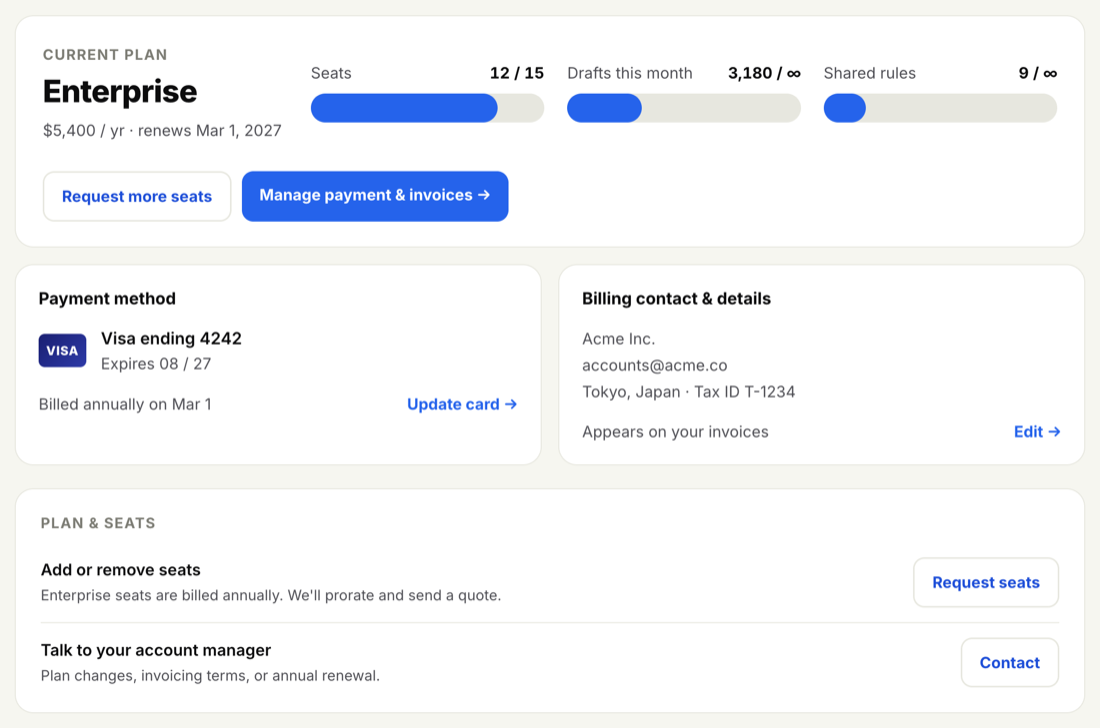
When you're ready to bring on more people, you request the seats rather than buying them on the spot. Enterprise seats are billed annually, so we prorate the change for the remainder of your term and send a quote to approve. Nothing changes on your plan until you say yes.
-
Open Billing or Users
Go to Billing or Users. Both show your current Seats meter, so you can confirm how many you're using before you add.
-
Select "Request more seats"
Use the Request more seats action and tell us how many you'd like to add.
-
Approve the quote
Because Enterprise is billed annually, we prorate the cost for the rest of your term and send a quote to your billing contact. Once it's approved, the new seats are yours and you can invite straight away.
Before requesting more, check whether any seats are held by people who've left. Archiving them frees those seats right away and may cover a new teammate without a plan change at all.
Removing someone and lowering the number you pay for are two different steps. Archiving frees the seat immediately for your next invite; the headline seat count on your plan is set at renewal.
- To free a seat now — archive the user. Their seat opens up at once, while their rules and history stay on file for your records. See Archive or remove a user.
- To lower your plan — Enterprise seats are billed annually, so a reduction in what you pay is handled at renewal. Talk it through with your account manager and we'll line the change up for your next term.
To start that conversation, use Request more seats on Billing for any change to your seat count, or reach your account manager directly at billing@inboxoji.com.
Archiving a user frees their seat but doesn't change your annual bill on its own. The number of seats you pay for is adjusted at renewal — so archiving early in your term simply leaves the freed seat ready for the next person.
Your Seats meter shows seats used against seats on your plan, and it reads the same on Users and Billing. When you're close to the limit, that's your cue to request more before your next invite. For how seats are counted and what does and doesn't use one, see Understanding seats.