
Add your logo and brand color
Make InboxOji look like your company's own tool. Add your logo and a brand color once, and the whole team sees them across the portal — buttons, links and highlights included.
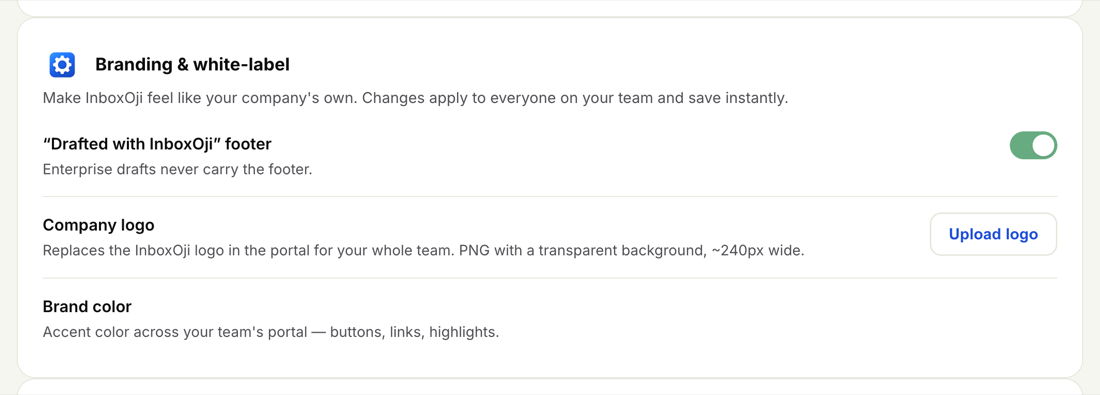
Open Settings from the console nav and go to Branding & white-label. Two controls here change how the portal looks for everyone on your team:
- Company logo — replaces the InboxOji logo in the header.
- Brand color — the accent used for buttons, links and highlights across the team's portal.
Both apply to the whole team and save instantly. There's nothing to publish or roll out — the next time a teammate loads the portal, they see your branding.
Your logo sits in the portal header in place of the InboxOji logo, so the team works in a space that looks like yours.
- Open Branding & white-label
Go to Settings, then Branding & white-label.
- Upload your logo
Under Company logo, upload a PNG with a transparent background, around 240px wide. It replaces the InboxOji logo for everyone on your team.
- Check the header
The change saves instantly. Glance at the header to confirm your logo sits cleanly, then you're done.
Use a logo with a transparent background (PNG). A solid white or colored block behind the artwork will show as a box in the header — transparency lets the logo sit cleanly against the portal.
The brand color is the accent that runs through the team's portal — buttons, links and highlights all pick it up. Set it to your primary brand color and the portal feels like part of your toolkit rather than a third-party app.
Under Brand color, choose your color. As with the logo, it applies to everyone and saves instantly.
Branding & white-label is also where the "Drafted with InboxOji" footer toggle lives. On Enterprise you can turn it off so drafts go out clean, with no mention of the tool. That's a separate decision from your logo and color — see Remove the "Drafted with InboxOji" footer for how and when to switch it off.
Branding changes what your team sees inside the portal. For how your people experience the white-labeled workspace day to day, point them to Your company's branding in the user Help center.